
Windows Speed Optimization Guide: 10 Steps for a Smoother System

Learn how to speed up Windows with our comprehensive 10-step guide. Discover practical tips and techniques to achieve a smoother, faster system performance today.

Introduction: Why Has Windows Slowed Down?
Windows has a reputation for becoming slower over time, but this is not inevitable. With the right maintenance and settings, you can bring your system close to its original speed. The following ten free and safe steps apply to both desktop and laptop computers.
1. Clean Up Startup Programs
Open Task Manager with Ctrl + Shift + Esc, select the Startup tab, right-click applications you do not need at startup, and choose Disable. Programs such as Adobe tools and Spotify often leave unnecessary background services running.
2. Select the High Performance Power Plan
Open Control Panel, go to Hardware and Sound, then Power Options, and select High Performance. Power-saving mode can limit CPU speed and introduce delays, so this step is especially useful for gaming and video editing.
3. Clean and Optimize Your Drives
Press Windows + R, run cleanmgr, and include system files in the cleanup. Then run dfrgui to defragment an HDD. If you use an SSD, verify that TRIM is enabled.

4. Disable Unnecessary Services
Open services.msc and set unused services such as Fax or Downloaded Maps Manager to Manual or Disabled. Windows Search can also be adjusted when indexing is not needed. Always read a service's description first to avoid disabling a system dependency.
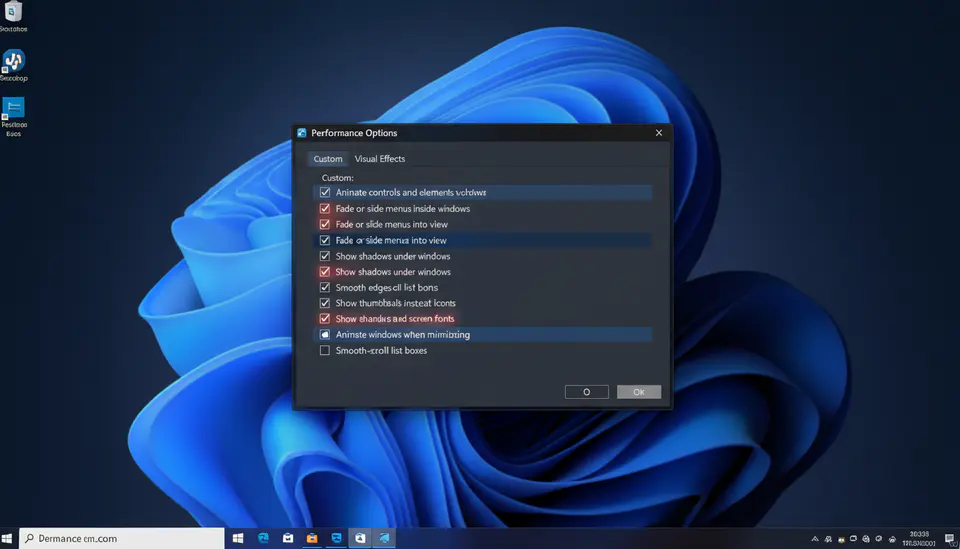
5. Reduce Visual Effects
Go to System, Advanced system settings, Performance, Settings, and select Adjust for best performance. Window animations will be disabled, allowing the Start menu and applications to respond more quickly.
6. Optimize the Windows Update Schedule
Set your active hours so updates are not downloaded and installed while you work. You can also review the option for updates to other Microsoft products under Advanced options to reduce background traffic.
7. Reduce Memory Usage
Use your browser's built-in sleeping-tab feature to suspend tabs you are not using. In msconfig, under Boot and Advanced options, leave Maximum memory unchecked so Windows can manage memory efficiently.
8. Keep at Least 15% of Storage Free
SSD write performance can decline as the drive fills up. Keeping roughly 40 GB free on a 256 GB drive can improve startup and everyday responsiveness. Move large games or archives to another drive when practical.
9. Keep Drivers Up to Date
Windows Update provides general drivers, but use the manufacturer's official site for current GPU and chipset drivers. An outdated graphics driver can disable hardware acceleration and slow down the entire system.

10. Clean the Cooling System
As temperatures rise, the CPU reduces its turbo frequency. Clean fans with compressed air about once a year and replace old thermal paste when necessary. Cooler hardware maintains stable performance for longer.

Conclusion
After completing all ten steps, startup time and application responsiveness should improve noticeably. Regular maintenance is much less expensive than a hardware upgrade. Review this checklist every month to keep Windows running smoothly for years.